Publishing your games on Airsoft-Pulse
You run games and you want players to find them? Three things to create, in this order: your organization, your field, then your games. The first time takes about twenty minutes; after that, announcing a game takes two.
What you need before you start
An Airsoft-Pulse account in your own name. Your personal account becomes the owner of the organization — you then invite the rest of the committee, each with their own account.
Create an accountWhere all of this happens
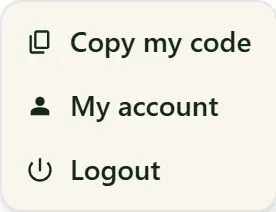
Everything is managed from the dashboard. Click your name in the top-right corner of any page, then “My account”.
Step 1
Create your organization
The organization is you: the club, the association, the team. It is what publishes games, opens registrations, and what players deal with. Nothing else can be created until it exists — so that is where we start.
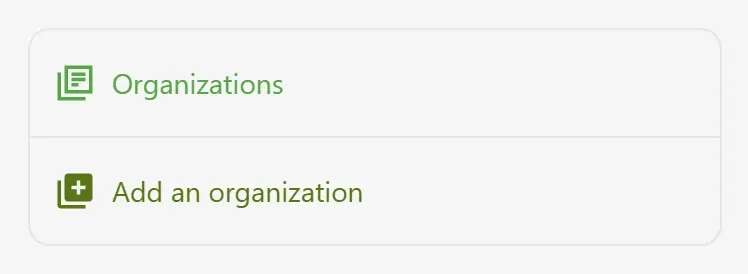
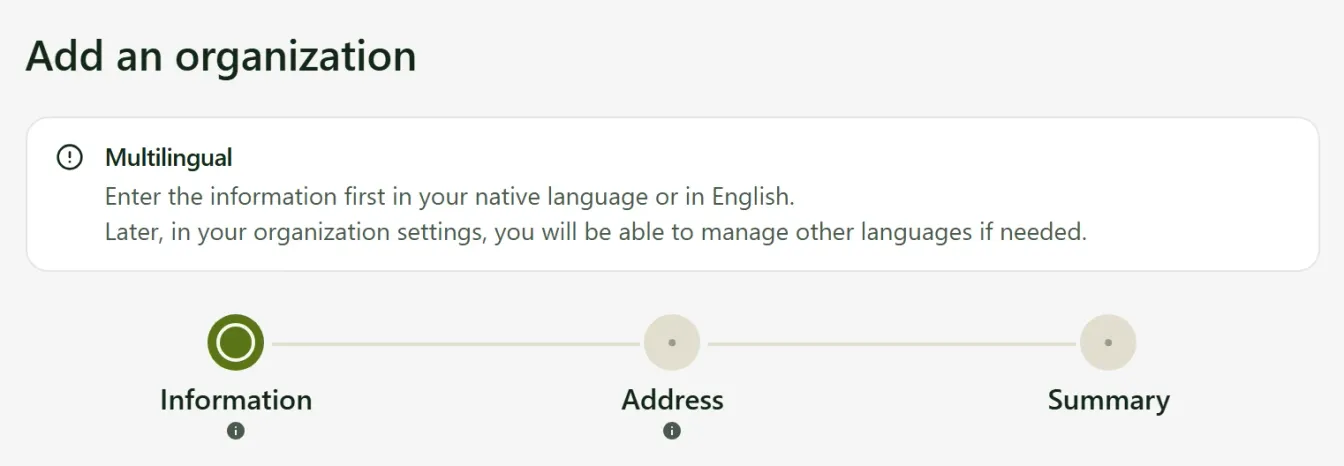
- Only the name and the address are required. Legal status, logo, description, social links: fill those in later, from the organization's own page.
- Once the organization exists, invite the other people in charge from its page. Everyone keeps their own account, and you are no longer the only one who can publish.
Step 2
List your field
The field is what players look for on the map. It carries the address, the access, the rules and the meeting points. Your games attach to it: you describe the place once, not with every announcement.
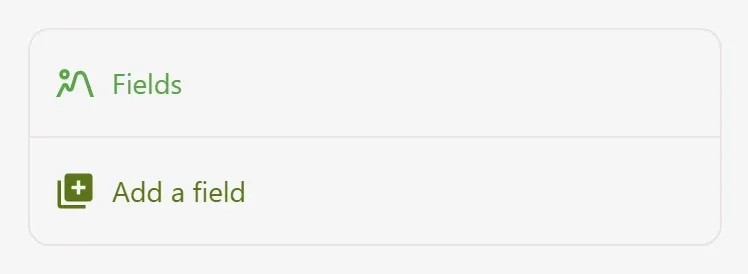
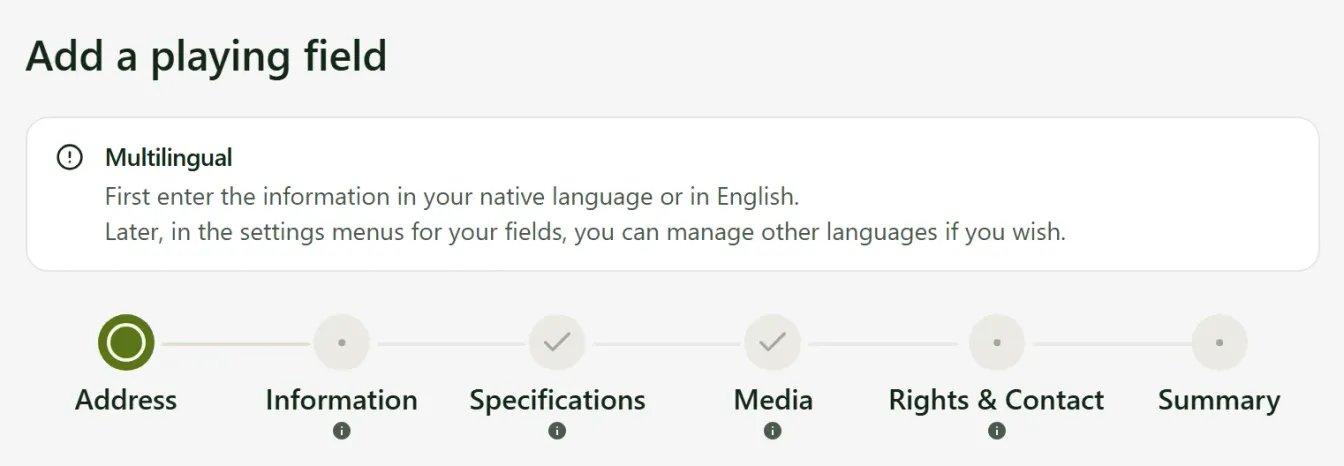
- If a field is already listed at that address, the form tells you and offers to request access to it rather than create a duplicate.
- Playing on a field that isn't yours? Ask its owner to give you access: you will be able to schedule your games there without managing it.
Step 3
Publish your games
This is the part you will repeat. A game reuses the organization and the field you already entered; all that is left is what changes each time: the date, the scenario, the number of places, the price.
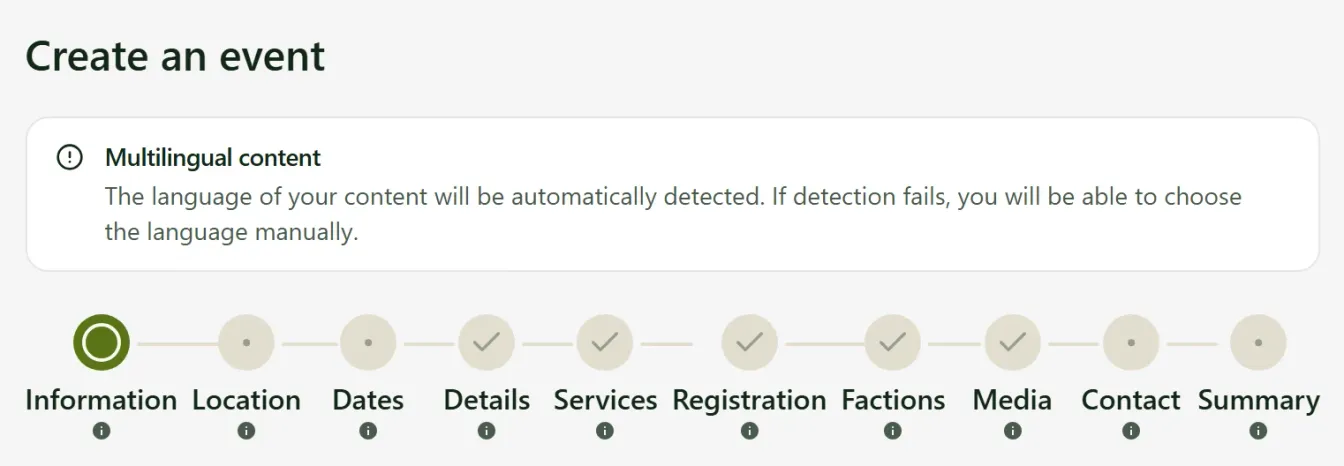
- An event stays a draft until you publish it: nobody sees it before then. There is no need to finish it in one sitting.
- Registrations are optional. If you open them, the attendee list, the waiting list and the reminders are handled for you.
What happens next?
Your game shows up in the directory and on the map, and its public page becomes the link to share. If you already have a website or a Facebook page, nothing has to move: embeddable frames show your attendees and open registrations from your own pages.
I already have a websiteStuck, unsure, or just have a question?
Write to us. We answer — and if you would rather do it together, we can set up your organization and your field with you.